Shadowrocket
Setup and Connection Guide
Add your existing details first, then choose Global Routing. After connecting, verify with an actual request—not just the switch.
Setup at a Glance
- AddAdd Server
- Choose a routing modeGlobal Routing
- Connect and verifyHome → Connectivity Test
For iPhone and iPad. Use the screenshots to locate controls; field names may vary in the current app.
Prepare a SERVER entry
Add Server: Add a Server or Import a Subscription
Open Shadowrocket and go to Home. Under the SERVER group, tap Add Server. First, identify the details you have: a complete link from your service provider used to retrieve a server list is usually imported as a subscription. Details such as an address, port, password, and protocol settings are entered as a single server. Choose one method; don’t paste a subscription URL into the server’s Host field.
Have a subscription link? Choose Subscribe
In Add Server, tap Type and choose Subscribe. Paste your full subscription link into the URL field. Before saving, check that the beginning, end, and query parameters are intact, and look for spaces, line breaks, or punctuation added when copying. Subscription links may contain access credentials. Use yours only on your own devices, and don’t share the full link in public screenshots or discussions.
After saving, return to Home and check whether the subscription has retrieved server entries. If you see a subscription entry but no selectable servers, check whether it needs updating and whether the update returned an error before turning on the connection switch. A subscription name is only a label; changing it won’t fix the link. Retrieved content depends on the URL, service status, and current network.
Have server details? Enter each field for its protocol
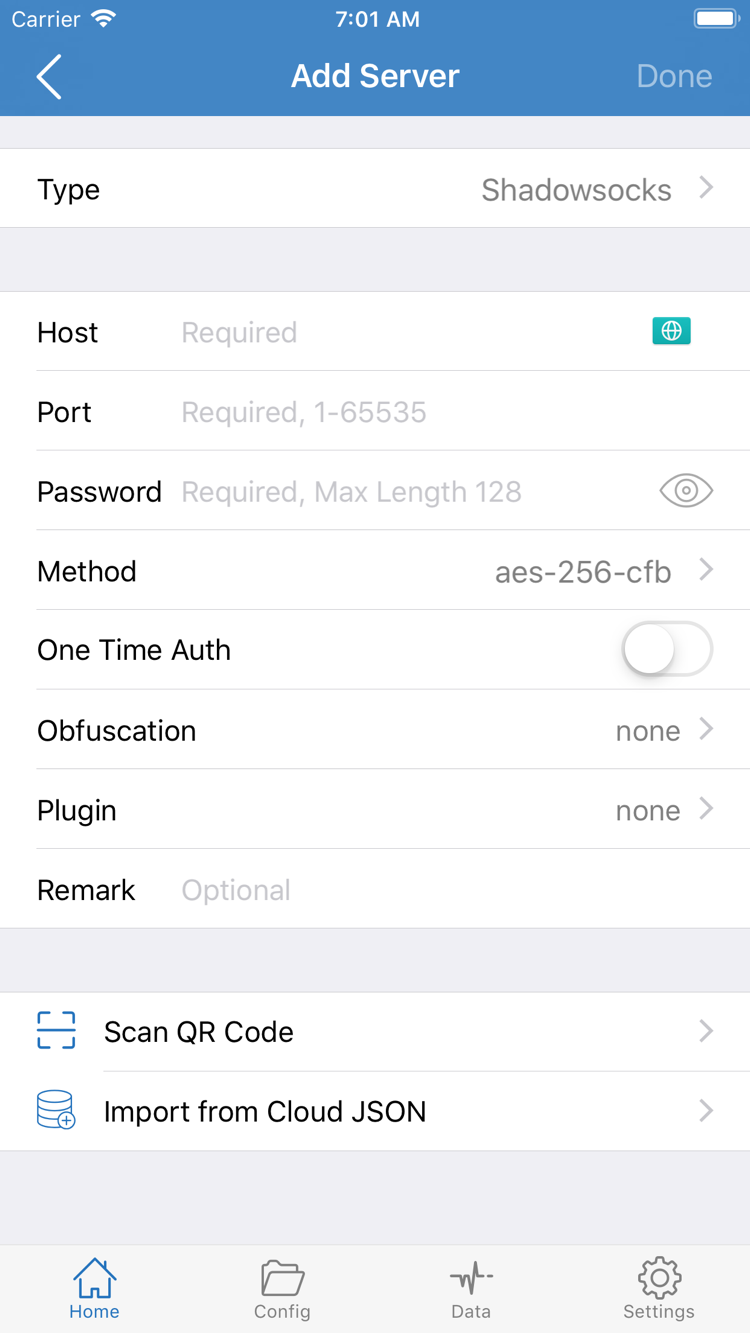
For a single server, choose the matching protocol under Type, then fill in the fields it requires. The official screenshot’s Host / Port / Password / Method fields show where to look; fields vary by Type, so don’t copy settings from one protocol to another. Host is usually a hostname or address, not a web page path. Check Port, Password, and Method against the details you received.
If you have a QR code, use Scan QR Code, then check the protocol and fields after importing. Import from Cloud JSON is a separate import option, not the same as Subscribe; use it only if your details are specifically intended for that option. Save, confirm the entry appears under SERVER, then continue. For the difference between subscriptions, servers, and configuration files, see the glossary. You don’t need to learn every protocol setting before connecting for the first time.
Before you continue: Confirm that a selectable server appears under SERVER on Home—not just a subscription name with no retrieved content.
Choose how requests are handled
Global Routing: Config, Proxy, and Direct
After adding a server, return to Home and tap Global Routing to check the current mode. This controls how requests are handled; it doesn’t add servers or fill in missing server details. Before your first setup, decide what you want to test: whether an existing server works, or whether a configuration file routes requests according to its rules. The results are checked in different ways.
Config: Use the active configuration file
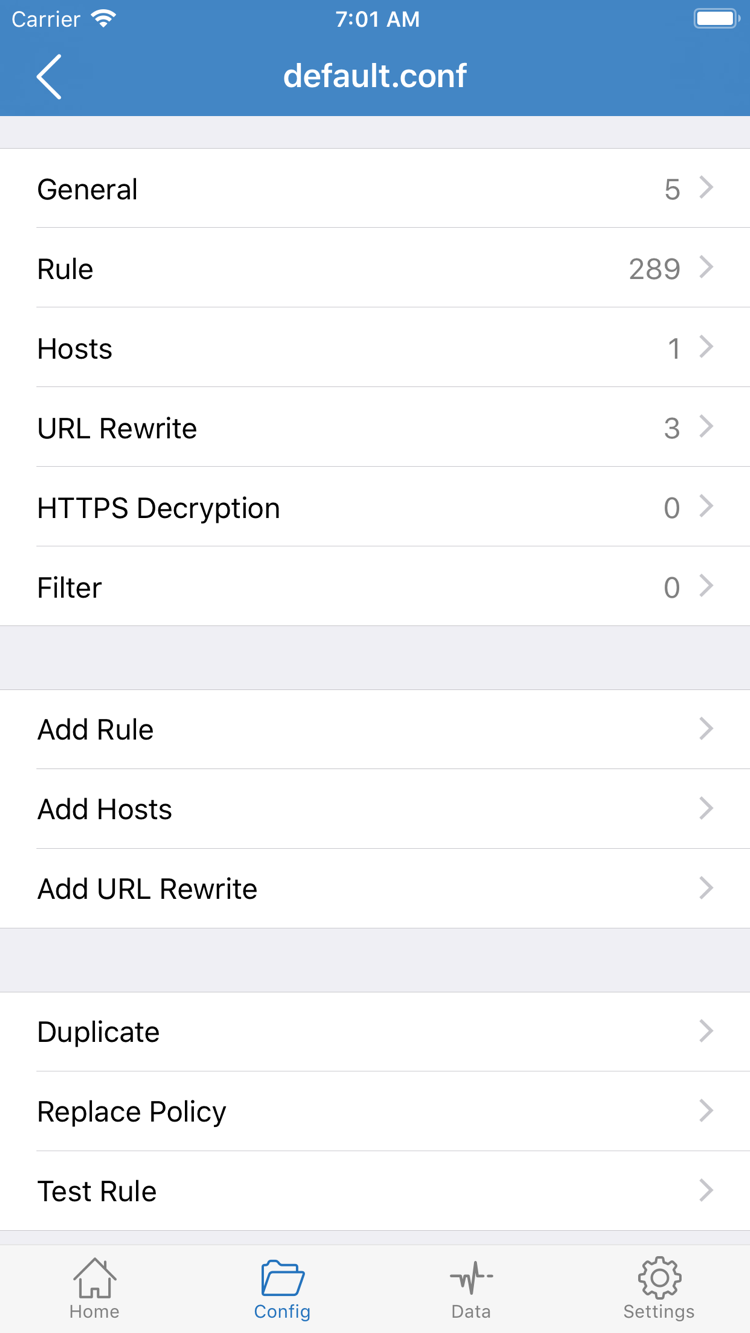
Config uses the active configuration file to determine how requests are handled. Go to Config, check which file is active, then open it to review its contents. The official screenshot shows General / Rule / Hosts / URL Rewrite / HTTPS Decryption as separate sections in the configuration editor; you don’t need to change every section to get started. Focus on the rules and their order under Rule, and confirm the configuration’s source and purpose. Don’t enable unrelated features just to connect for the first time.
Rules are usually evaluated in order. An earlier rule may determine whether a request uses DIRECT or PROXY; FINAL handles requests that don’t match an earlier rule. Choosing Config does not mean all requests will go through the selected server. A server subscription and a configuration file are also different things: importing a server list with Subscribe does not automatically switch to a matching rule configuration.
Proxy and Direct: Useful for comparison
Proxy routes requests through the selected server. During troubleshooting, it can serve as a temporary comparison to help distinguish server issues from configuration rule issues; it won’t fix an incorrect address, password, or protocol setting. Direct connects without a proxy. A web page loading in Direct mode does not confirm that the server works. After changing modes, return to Home and check that the selected Global Routing mode is the one you expect.
If you’re not sure what the configuration rules do, keep the original file and compare changes one at a time. Don’t change the configuration, edit rules, and switch servers all at once, or it will be hard to tell what caused a failure. See the glossary for rule keyword definitions, or Frequently Asked Questions for common questions about routing modes and rules. Once you’ve confirmed the mode, proceed to system authorization and connect.
Before you continue: Know whether the current mode is Config, Proxy, or Direct, and whether you’re testing the server or the rules.
Select a server and approve the system prompt
Home: Turn on the connection
Return to Home and select the server you intend to use under SERVER. Confirm which entry is selected; don’t rely on the subscription group name alone. Then check Global Routing again. Verify both selections: the server provides the connection details used for proxy requests, while Global Routing determines how requests are handled. If the list contains multiple entries, check the selected state rather than guessing from their order.
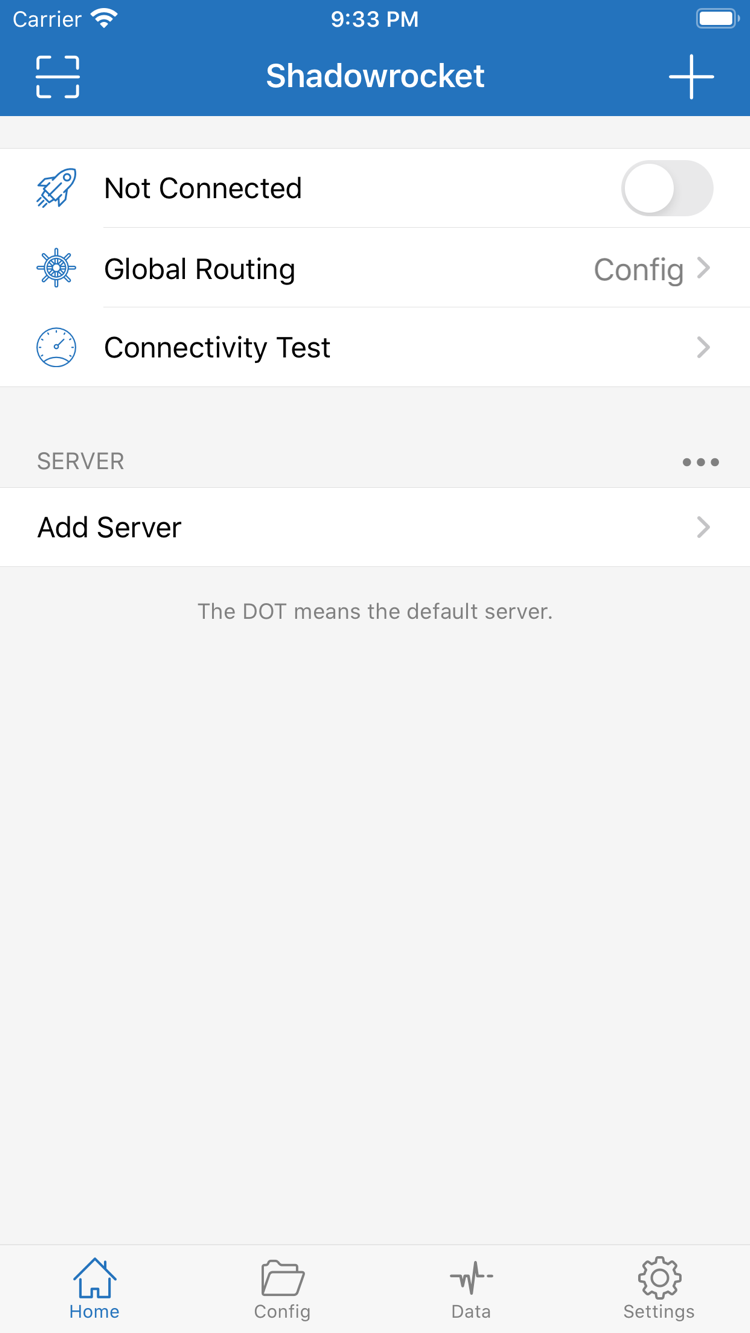
Tap the switch at the top of Home to connect. In the official screenshot, Not Connected shows that the app was disconnected when the screenshot was taken; it’s there to help you locate the switch, not a status you need to keep. On the first connection, the system may ask permission to let Shadowrocket add a VPN configuration. Read the prompt and confirm that the request comes from the app you’re using, then follow the system steps to approve it. If device authentication is required, complete it in the system interface; don’t enter your device passcode in a server field.
After granting permission, return to Shadowrocket and check whether the top switch and connection status remain on. If the switch turns off immediately, check authorization, configuration, or connection errors before changing rules. If you previously canceled the system prompt, watch for it to appear again when you reconnect. If another VPN configuration is present in system settings, confirm which one is active so you don’t mistake its status for the connection you’re testing.
A switch that stays on only shows that the connection process has reached a certain state; it doesn’t prove the server can handle every request. After connecting, move to the next step and check results with Connectivity Test and an actual visit. For now, keep the same network, server, and routing mode. Avoid changing several settings at once so you have a consistent baseline for comparison.
Before you continue: Complete system authorization and make sure the connection status doesn’t immediately revert after you return to Home. Then start testing.
Check the switch and the actual result separately
Connectivity Test: Check that the connection works
Tap Connectivity Test on Home, wait for it to finish, and review the result. The test provides a clue about connectivity under current conditions; it does not guarantee access to every site or that every type of request will work. A latency test in the server list is also different from visiting an actual destination. A response to one test doesn’t prove that authentication details are correct, and a timeout needs to be considered alongside the test method, current network, and server status.
Next, open the app or page you actually need to use and make a fresh request. Choose a specific destination and repeatable action, such as reloading the same page, rather than checking content that may be cached. Note whether the page loads fully or whether only text appears while images or later requests fail. Record the destination, action, and result; this is more useful for troubleshooting than simply noting “works” or “doesn’t work.”
If you’re using Config, check the in-app request log, if available, to see which rule and policy matched the request. A request that matches DIRECT connects directly; a request that matches PROXY uses the corresponding proxy policy. Some requests going direct does not mean the configuration has failed. Changes in Data can help show whether traffic is being transferred, but increased traffic alone doesn’t prove that a particular request matched the expected rule.
To narrow down the cause, keep the same server and destination, switch Global Routing from Config to Proxy, and test again. If Proxy works but Config doesn’t, check the configuration file and rules first. If both fail, revisit the server details and network conditions. After comparing, restore the mode you normally need so temporary troubleshooting settings aren’t left in place.
After the first successful test, switch to another network you normally use and check the connection and destination again. Record results before and after the network change separately; one successful result doesn’t mean all networks behave the same way. Your basic verification is complete when the selected server, current mode, test result, and actual visit all line up. For more detailed routing questions, see Frequently Asked Questions about rule-based routing.
Done when: You can reproduce access to the destination—not just see the switch on—and explain why the request uses DIRECT or PROXY.
Check one thing at a time
Settings: Troubleshooting Checklist
If a step failed, first identify where: the subscription didn’t retrieve entries, an entry is present but won’t connect, the switch is on but the test fails, or only some destinations have issues. Each stage has different checks. Keep the current configuration and error details; repeatedly deleting items, reinstalling, or changing several settings at once won’t help pinpoint the cause. Follow the checks below, starting with the details you received and moving on to the connection and settings.
- Subscription import failed: Reopen the subscription and check that the link is complete, its access credentials are still valid, and the current network can retrieve its contents. If the link opens but no servers appear, check whether the returned content is in a subscription format the app can recognize. Don’t treat a web page containing an error message as a successful import. Ask your existing service provider to confirm whether the subscription is valid.
- Can’t connect to a single server: Reopen the entry for editing and check Type, Host, Port, and the authentication, encryption, and transport settings required by that protocol. Protocol names that look similar are not interchangeable. Don’t randomly change Method or other fields to see what happens. First verify that the details match what you received, then test the same entry again.
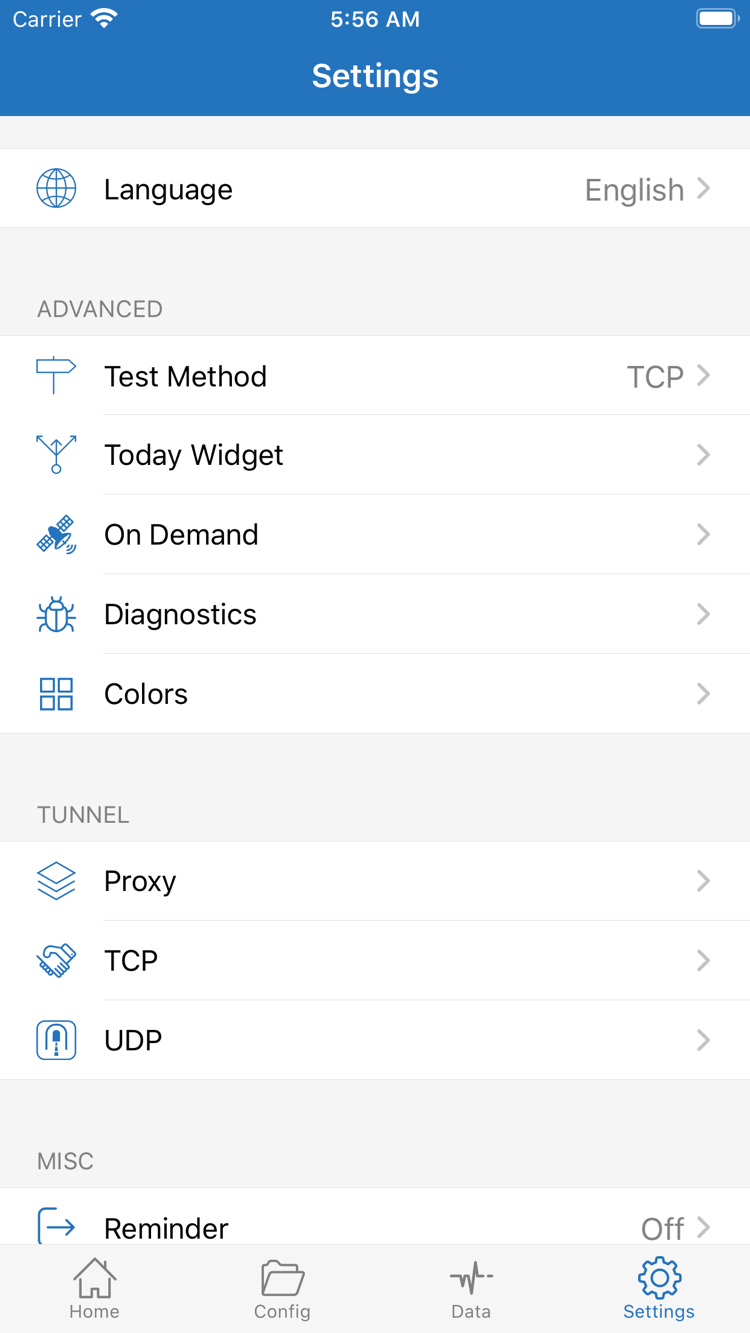
- Test and actual access don’t match: Check Test Method in Settings and note which method you used. Different test methods mean different things, so compare results under the same conditions. Then return to Home and confirm the selected server and Global Routing mode. Make sure you aren’t testing one entry while using another.
- Connection drops immediately or keeps restarting: Check that system authorization is complete, then check whether On Demand in Settings has configured triggers. When troubleshooting a manual connection, consider whether those conditions affect its current state; a connection restarting in response to a trigger doesn’t necessarily mean the top switch failed. Also check that the device’s system time is accurate and, if needed, use the system’s automatic time-setting option.
- Only one network or destination fails: Keep the server and configuration unchanged, compare another network you can use, and test the same destination. If the issue changes only with the network, note the differences between networks. If it changes only with a particular server, check that entry first. Use Diagnostics to gather clues if needed, rather than changing unrelated TCP, UDP, or other settings right away.
When gathering diagnostic details, include only field names, observed errors, and the steps that led to the issue. Before sharing, hide the full subscription link, password, and other credentials. If you need help, describe the failure stage, current mode, network conditions, test method, and the individual checks you’ve tried. This is usually more helpful than a screenshot without context.
After fixing one issue, verify again in this order: connect → Connectivity Test → visit the destination. Continue investigating that change only if the result differs. If the cause is still unclear, search by symptom in Frequently Asked Questions. For Settings or protocol fields you don’t understand, check the glossary. If the issue is with an App Store purchase, app availability, or restoring a purchase, return to Getting the App instead of changing connection settings.
Before you finish: Restore any temporary Global Routing changes, keep the server and configuration you’ve verified, and confirm that the destination still works as expected.